
We are changing the requirements for your Windows / AD passwords at Time. From now on, all passwords must be 12 characters long, with 3 of 4 things needed from the following list (upper case, lower case, numbers, special characters). You also will not be able to use any part of your username as part of the password. We will start sending out emails letting you know your password is about to expire 2 weeks before the deadline. You must then log into your computer and change it, or change it at office.com. I will provide instructions on each method below.
Windows Password Change:
- Once you are logged into Windows, Press Ctrl+Alt+Delete, and then click Change a password.
- Type your old password followed by a new password as indicated, and then type the new password again to confirm it.
- Press Enter.
Changing Password on the Office365:
- Connect to Azure VPN or Meraki VPN. (Only if you are assigned and are using an Internal company computer to synchronize your O365 and computer new password change. This can take up to 30 minutes to complete after the password change has been done.)
2. Sign in to https://myaccount.microsoft.com/ with your assigned Time/Versalift work account. If you have not set your Multi Factor Authentication (MFA) you will need to set it up at this time. Follow the prompts and select the MFA method you would like to use such as the Authenticator App. You will need this alternate method of authentication every time you log into your O365 portal.

3. If you were able to go directly into your O365 portal Account settings using https://myaccount.microsoft.com/
Select “Change Password”
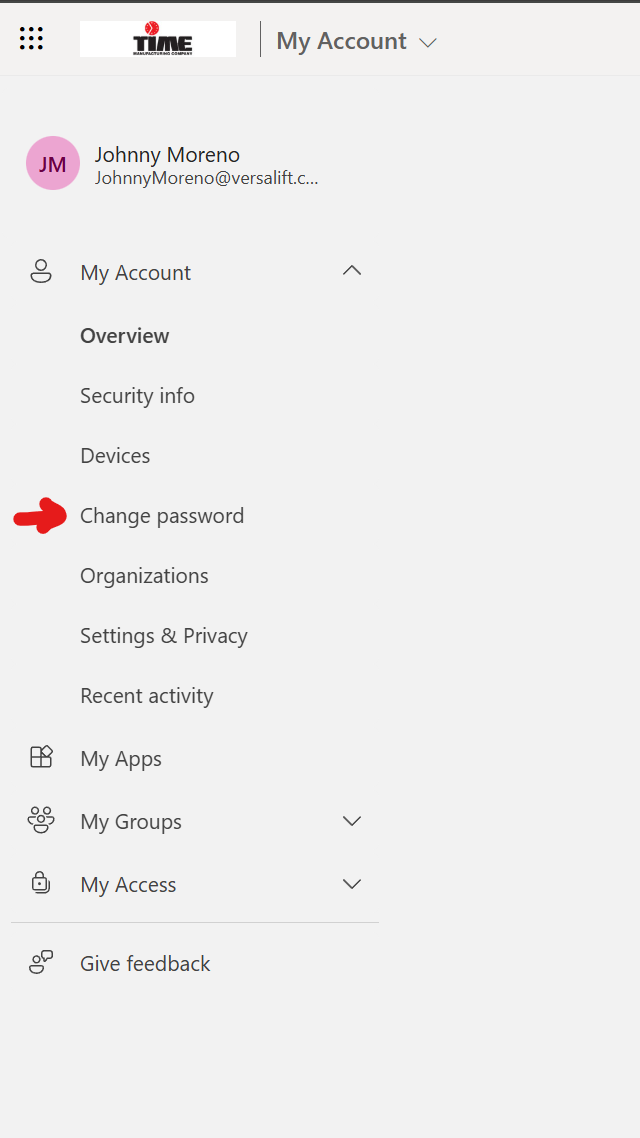
4. Enter your current password > Enter your new password and retype to confirm your password
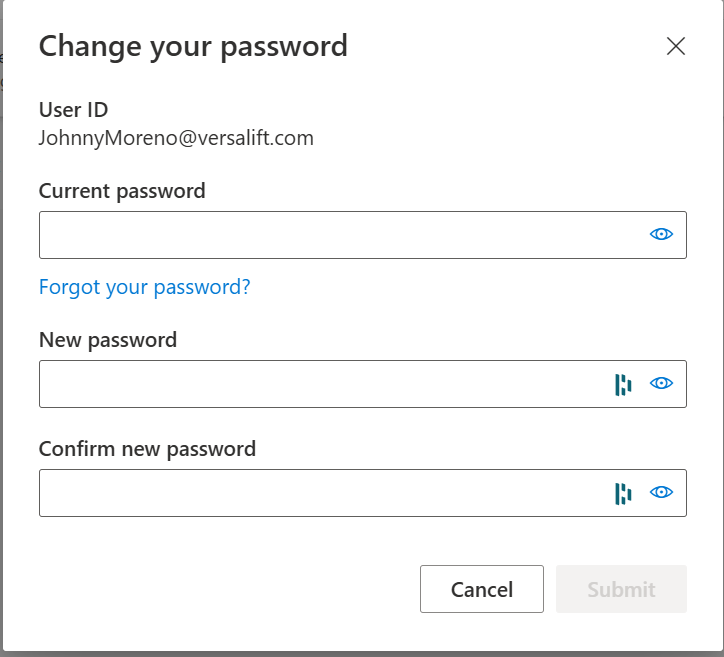
5. Notes: You will need to wait 30 minutes for all servers to synchronize the new password change. Do not log in immediately to any services that requires your new password.
Important: Your organization determines character requirements and how frequently you need to change your password. If you do not see the option to change your password, your organization is blocking you from changing it. Contact your admin for more information.
Time Manufacturing Password Policies
Enforce password history 5 passwords remembered
Maximum password age 182 days
Minimum password length 12 characters
Password must meet complexity requirements Enabled (Special characters, upper case and lower case letters, and Numbers)
Alternative passwords change methods:
https://myaccount.microsoft.com/ → Works if the user can still sign in and needs to change an expiring/expired password.
https://passwordreset.microsoftonline.com/ → Use this if they can’t sign in at all because the password is expired or forgotten.
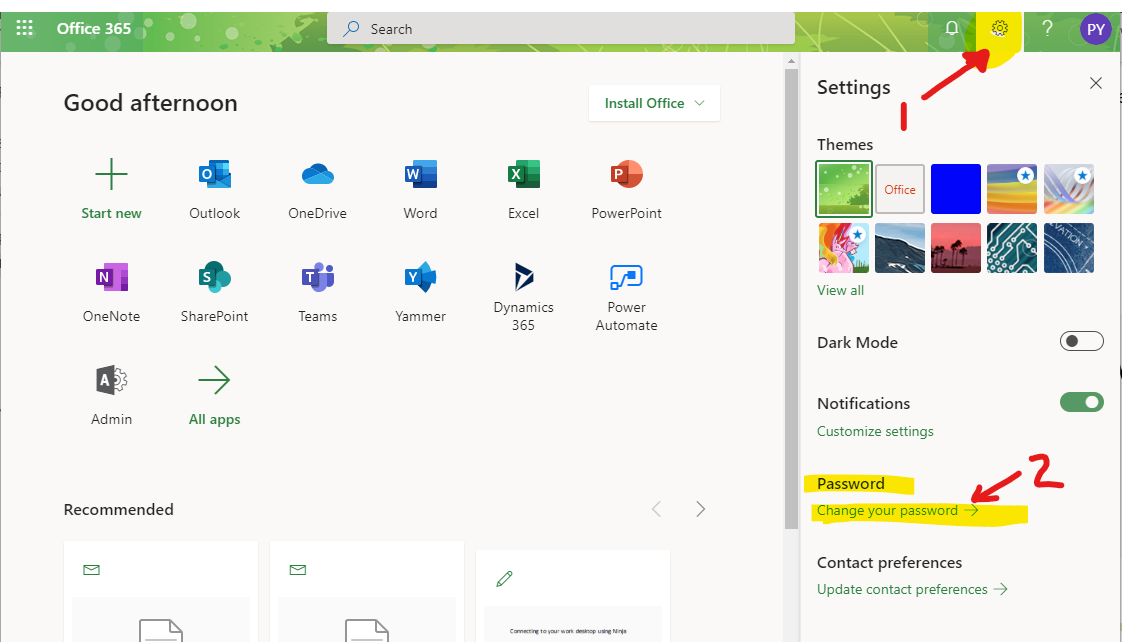
The following method is just another way to change your password if you are signed into your office.com account. The gear setting option is available on any service in which you are on within your office portal.
- Log into Office365 at https://www.office.com
- If you haven't set up your account with your cellphone, or other information, you will be asked to do so.
- Click on the gear in the upper right of screen. (#1 in figure)
- Choose ‘Change Your Password’ (#2 in figure)
- You will then enter your current password, and the new password twice
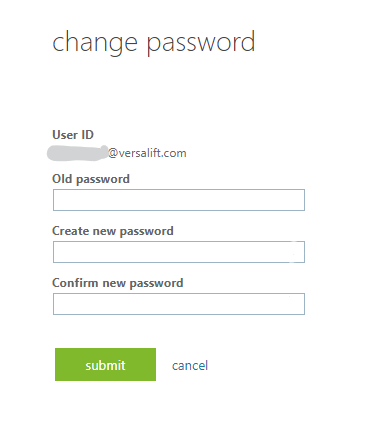
- Click the Submit Button.
- Hit Ctrl-Alt-Del, Pick Lock, then log back into your pc with new password.