This guide explains how to share folders in OneDrive when your organization restricts link sharing,
allowing sharing only with specific people via email.
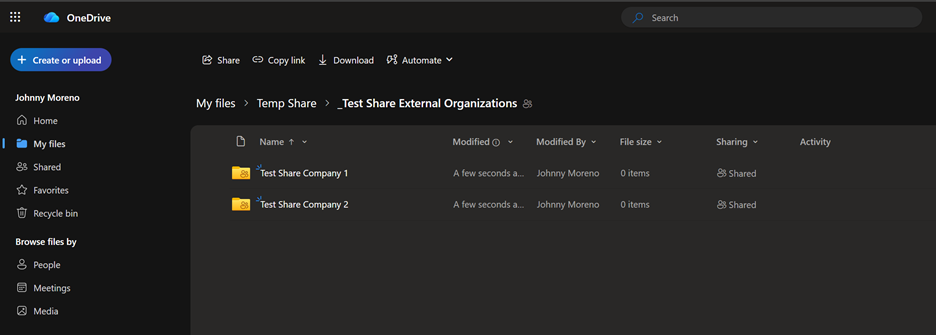
1. Open OneDrive
Go to https://www.office.com ® OneDrive, or open your OneDrive folder in File Explorer.
2. Locate the Folder You Want to Share
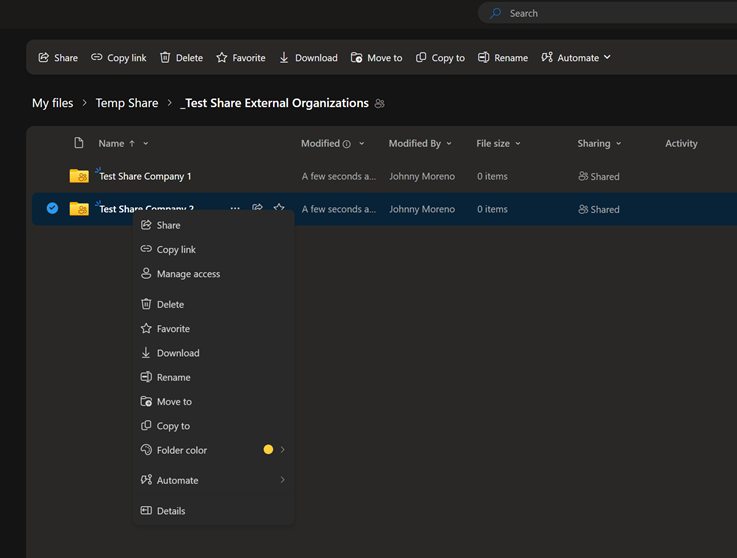
Find the folder you want to share and right-click ® Share.
3. Select the Email-Only Sharing Option
You will see “Add a name, group, or email”. Do Not Select to Copy link as this option is blocked due to security sharing. You can add multiple recipients to receive this shared access.
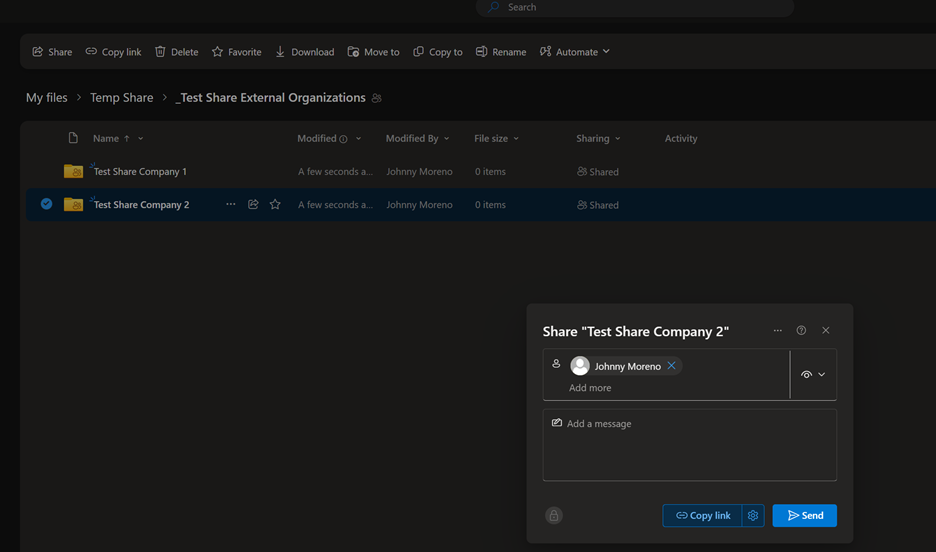
4. Enter Email Addresses
Type the recipient's full email address and choose whether they can view or edit.
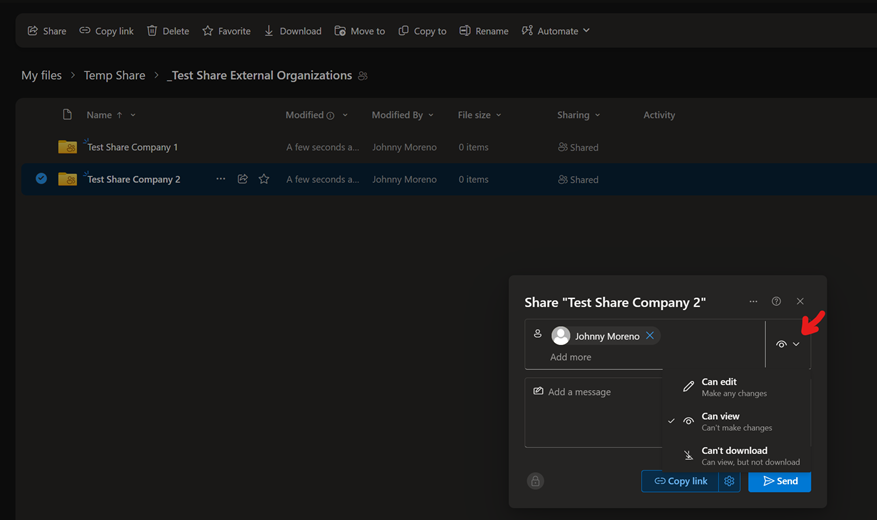
5. Click Send
The user will receive a secure email invitation granting access.
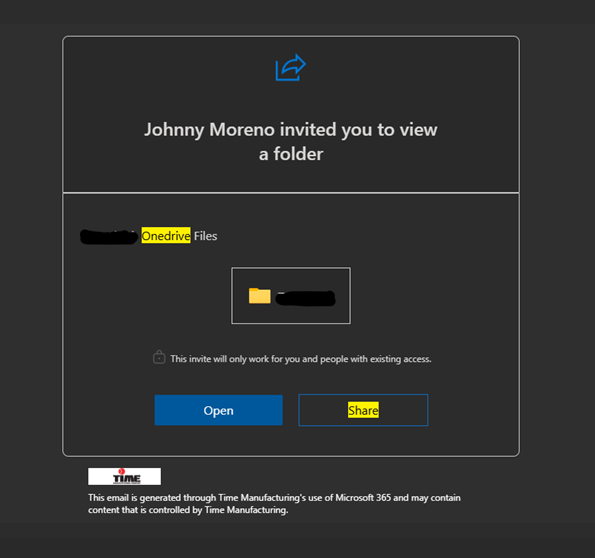
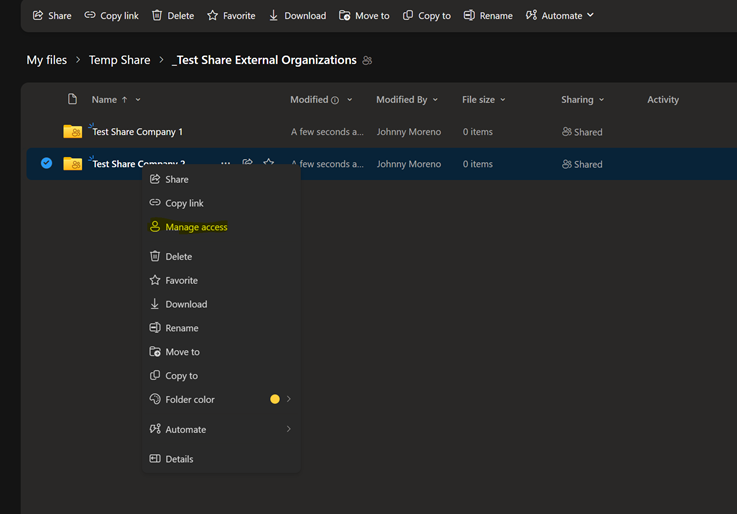
6. Manage Access Later
Right-click the folder ® Manage Access to add/remove users or adjust permissions.
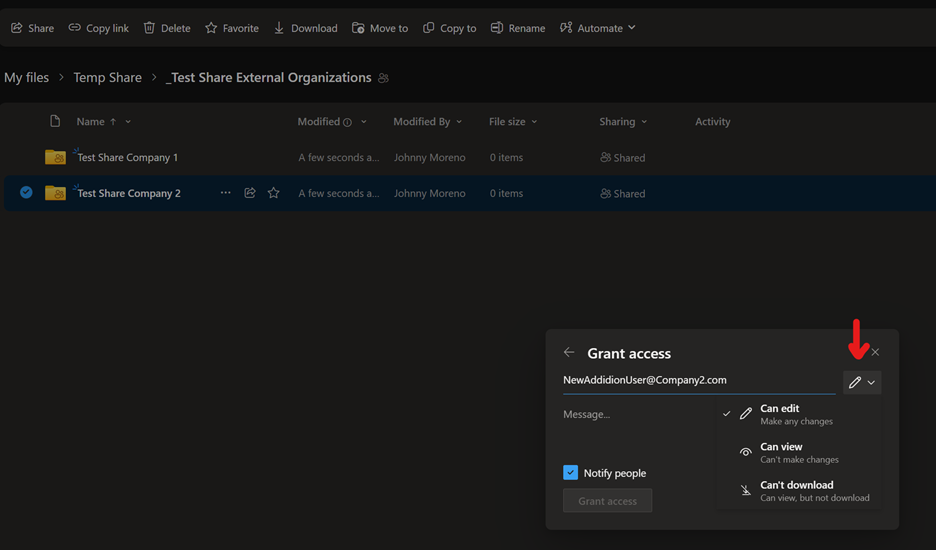
Select the top right “Grant Access” Icon
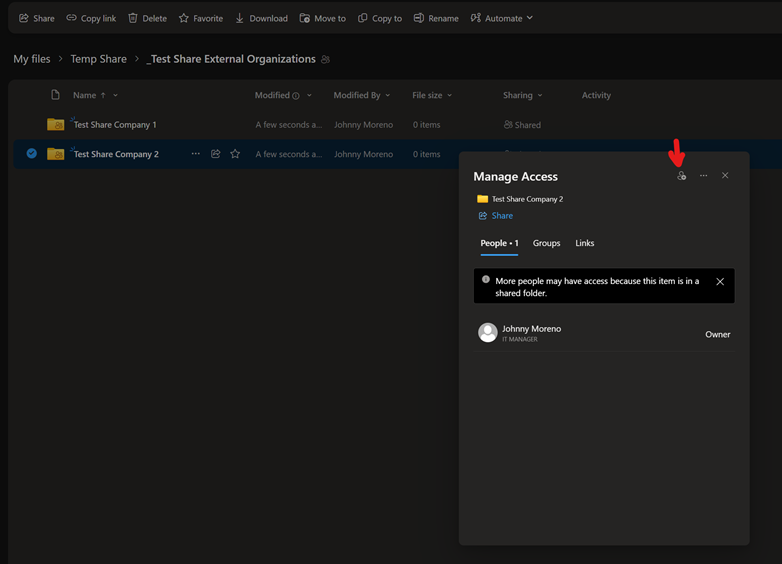
Add the new users requiring access and select the option to grant edit or view access.