This document goes over the current process in place for backing up the OneStream production application. This is the manual process and may be replaced by an automatic process. In the case of this, this document will be updated accordingly.
Currently, backups will be conducted on the following schedule:
- Weekly: Every Friday at the end of the work day (currently 3:30 PM CST)
- Monthly: Last day of the month at the end of the work day
Both backups must be conducted even if both happen to fall on the same day. (Ex: The last day of the month happens to be a Friday. In this case, the Weekly and Monthly backups must be done on the same day. Wait for one to finish before proceeding to execute the other. There may be cases where the OneStream server can crash or be interrupted if the first process is not allowed to finish.)
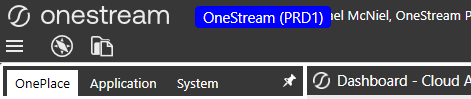
- To backup the production application, make sure that you’re logged in to the Production environment. You should see a blue bar at the top of the window labeled ‘OneStream (PRD1)’
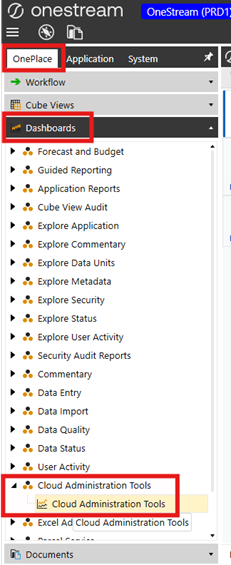
- Once logged in, navigate to the ‘OnePlace’ tab located on the left hand side panel. Click on the ‘Dashboards’ drop down, then click on the ‘Cloud Administration Tools’ drop down arrow. There should only be one option labeled ‘Cloud Administration Tools’. Click this option to open up the Cloud Administration Tools window.
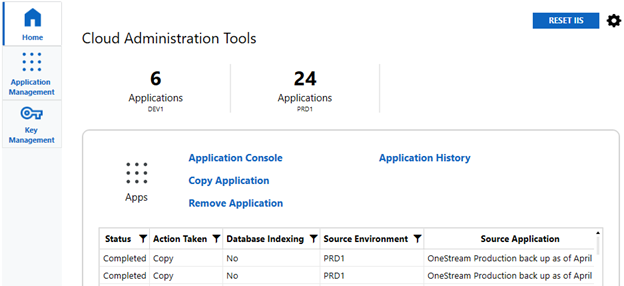
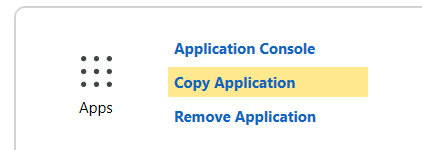
- Click ‘Copy Application’.
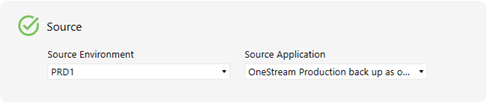
- First, we need to select our source application that we want to copy. Since we’re making a backup of the production application, we’ll select that option. For the ‘Source Environment’, select PRD1. For the ‘Source Application’, select the main production application. The name of this is subject to change, so be sure to select the one that you know for a fact people are working out of. In our case currently, the production application is OneStream Production back up as of April 20 2025.
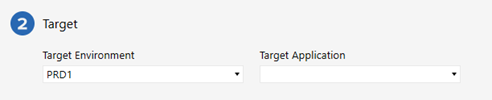
- Next, we’ll set our target application. Set the ‘Target Environment’ to PRD1.
- There are 2 options available for copying an application. We can either create a new application or overwrite an existing application. Both options are presented here in this document, but it should be known that the current process is to overwrite our existing, dedicated weekly/monthly backup application.
- Overwrite to Existing Application (CURRENT METHOD):
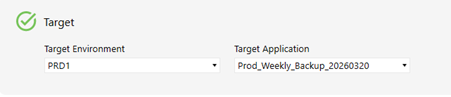
The ‘Target Application’ should be set to the respective weekly or monthly backup application. The name of these will be Prod_Weekly_Backup_[YYYYmmdd] and Prod_Monthly_Backup_[YYYYmmdd]. In our example, we’re choosing the weekly backup that was last ran on March 20, 2026.
- Create a New Application:
If creating a new application, select the <Create New Application> option.
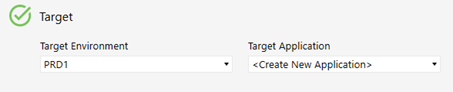
- For the ‘Application Name’, follow the naming convention as shown below with the date field being the current date.
- Weekly: Prod_Weekly_Backup_[YYYYmmdd]
- Monthly: Prod_Monthly_Backup_[YYYYmmdd]
Set ‘Enabled Scheduled Tasks’ to ‘No’.
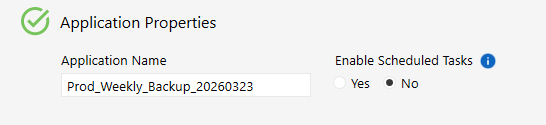
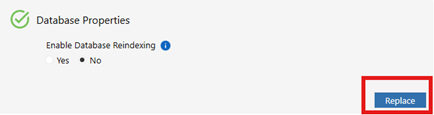
- Finally, set ‘Enable Database Reindexing’ to ‘No’. Then click ‘Replace’ (if overwriting application) or ‘Create’ (if creating a new application).
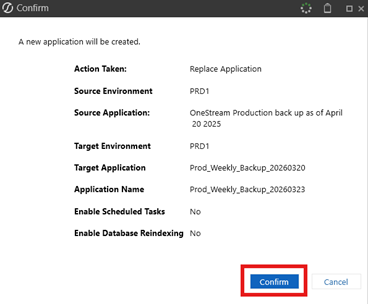
- Review the changes that will be made and click ‘Confirm’. The application copy will begin shortly.
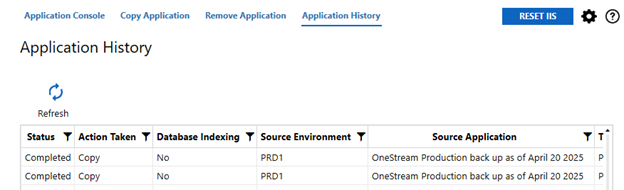
- Navigate over to the ‘Application History’ tab if not already there. You should see your copy action currently in the ‘Queued’ status. After a few minutes, click the ‘Refresh’ button to see the new status of your copy action. The status will change from Queued > Running > Succeeded > Completed. The backup application can safely be accessed after the action has reached the Succeeded status. If you need to copy another application, only do so AFTER the previous copy action has reached a Completed status. You may have to close out of OneStream in order for the status to display as Completed. It may take some time before it fully reaches this status.
Total time for application copy: ~20 minutes