
Ways to connect to VPN
First, be sure the iPad is connected to a Wi-Fi network
Method 1 (easiest)
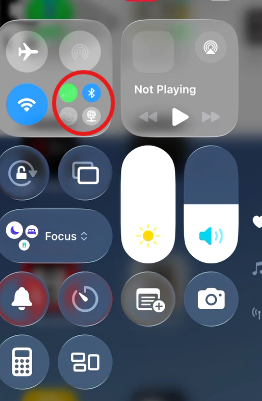
Swipe down from top right of screen
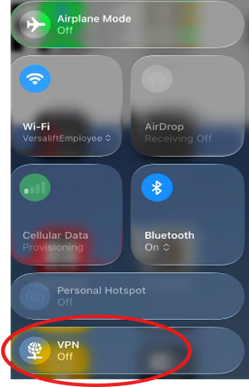
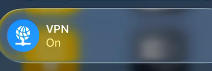
Method 2
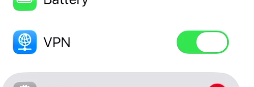
Open Settings App

Left side of screen, Toggle on
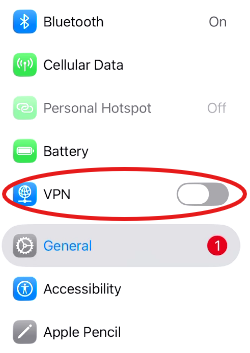
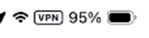
You will see this on the top right of your screen if you are connected
Method 3
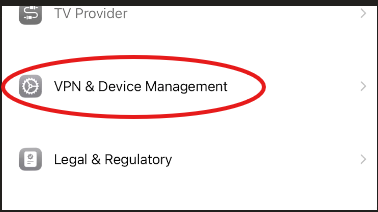
Settings>General>VPN & Device Management>VPN
Toggle on

Connect to Shared Server
Step 1
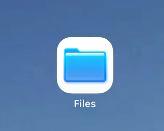
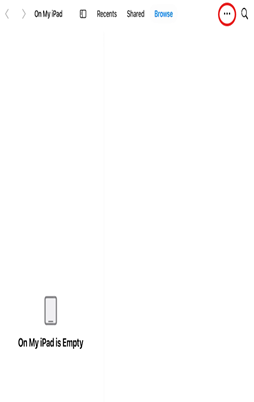
Open Files App
Step 2
Click the 3 dots “…”
Step 3.
Connect to server
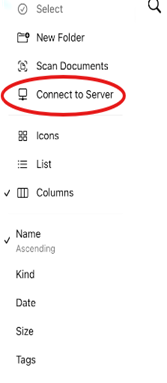
Step 4.
Type in smb://aruba.timemfg.prv/Shared click the check mark
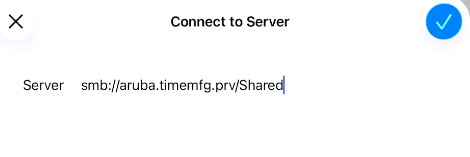 **At times the /Shared part does not work when connecting. Solution: connect directly to smb://aruba.timemfg.prv or 10.10.40.205 and then navigate to the Shared folder***
Use “Registered User”, enter credentials (firstnamelastname) 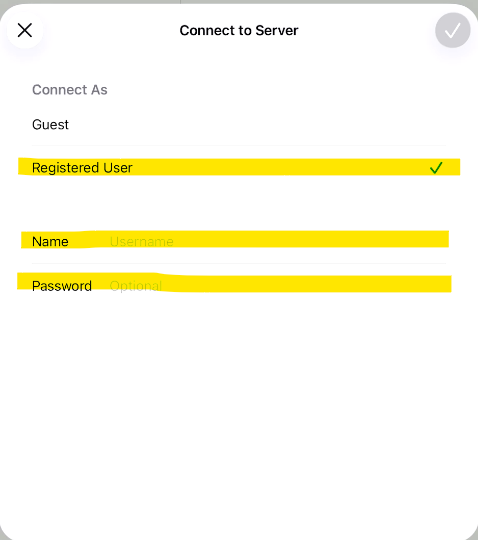
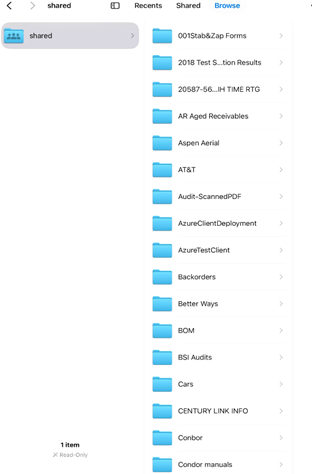
**Must be connected to VPN for Shared drive to work**
**If VPN Connection is not available, contact helpdesk to resync iPad policies. Please provide the name or serial number of the iPad"